
How to Fix Orphaned Users in SQL Server after a Database Restore?

You may encounter login or access errors, such as error 15023, when connecting to a restored database via SQL Server Management Studio (SSMS). This happens because a database backup (.bak) includes database-level users and their Security Identifiers (SIDs). It does not automatically recreate server-level logins in the target instance’s master database. If you restore the database to a different SQL Server instance where the corresponding login is missing or has different SIDs, the database user becomes orphaned. In this article, we will discuss how to find orphaned users in SQL Server and fix the issue.
Table of contents
What are Orphaned Users in SQL Server?
A database user becomes orphaned when it is no longer associated with a valid SQL Server login. In other words, when a user’s Security Identifier (SID) inside the database does not match the SID of any login in the master database. This problem may occur when a server login has been deleted or when a database is migrated or restored to a different SQL Server instance without its corresponding server-level logins being recreated. This usually happens when you try to attach or restore database from one server to another server instance.
What causes Orphaned Users in SQL Server?
Following are the reasons why orphaned users occur:
- When you restore or attach a database to a different server, the database user loses the connection to the original server logins.
- If you manually create a login with the same name on a secondary server, SQL Server gives it new (SID) that does not match with the old ID inside the database.
- Copying a database to a new instance without copying the correct login details from the source server.
- Administrator has deleted a server login.
Orphaned Users in SQL Server Always On Availability Groups after a Database Restore
In Availability on Availability Group (AG), orphaned users can occur when the corresponding SQL Server login is missing or has a different Security Identifier (SID) on a secondary replica. As each replica instance maintains an isolated master database, server logins do not automatically synchronize. If you manually recreate a login on a secondary replica using the same alphanumeric name, SQL Server generates a new, random SID by default. Because this new SID fails to match the original SID in the restored database, the user becomes orphaned. This can lead to authentication and connection failures in a high-availability environment during a failover.
How to Check for Orphaned Users in SQL Server?
You can run the following command to check orphaned users in your SQL Server:
USE [3.Bonus2];

GO

SELECT dp.name AS 'Orphaned User', dp.sid AS 'Database SID'

FROM sys.database_principals dp

LEFT JOIN sys.server_principals sp ON dp.sid = sp.sid

WHERE dp.type = 'S' -- Look for SQL users

AND sp.sid IS NULL; -- Look for missing server SIDs

GO
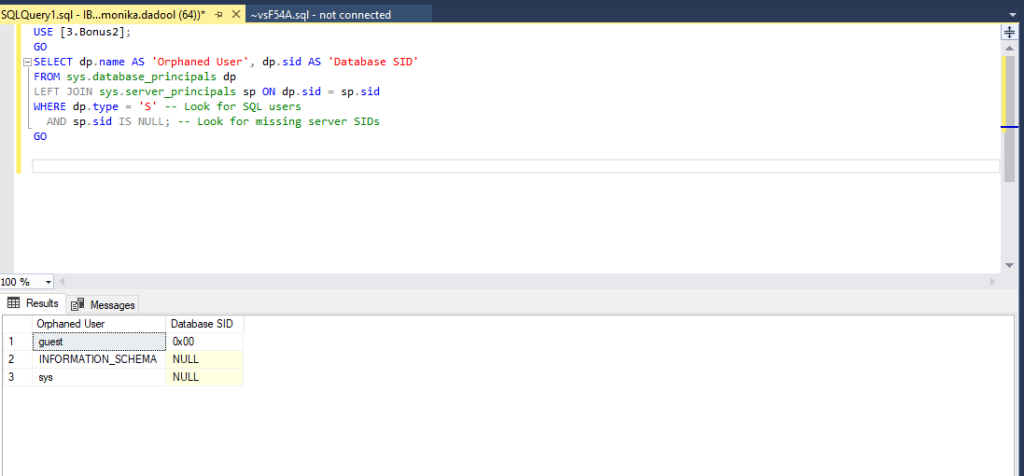
It returns a list of database users that have no matching login SID on your server.
The Database SID = 0x00: This means the SID is incorrect, missing, or empty.
NULL: It means the database has no record of a login for that user.
Ways to Fix SQL Server Orphaned Users
Once you have detected the orphaned users, you can follow the below methods to fix the issue.
Method 1: Create a New Login using the Same SID
If an orphaned user occurs after restoring your database to a new server instance due to missing or incorrect SID, you can recreate it. This method works when the database user exists, but the server-level login is missing. When a database is moved to a new server, the database user still remembers its original unique ID (SID). Instead of letting the SQL Server to auto-generate a new ID, you can force the new server to recreate the login using that exact same ID. Here’s how:
CREATE LOGIN <login_name>

WITH PASSWORD = '<password>',

SID = <SID>;
You can use this method if you want to preserve the exact identity of the database user using the original SID relationship directly.
Method 2: Remap the Affected Users to Existing Logins
To map an orphaned user to a server-level login that already exists in master, you can use the following command:
ALTER USER ... WITH LOGIN = <login_name>.
This command forces the existing database user to link with the existing server login. You can use this method when a login with the same name or a different name already exists at the server level but their SIDs mismatch during a database restore.
How to Prevent Orphaned Users after Database Restore?
-
Consider contained database users where appropriate:
According to Microsoft, you can use the contained database model to make the database more portable. This prevents orphaned users after a restore by authenticating accounts directly at the database level, instead of relying on server-level logins. This eliminates the need to manually remap mismatched SIDs when restored to a different SQL Server instance.
-
Run sp_help_revlogin command to transfer logins:
Use the sp_help_revlogin command to create a login script from the master database of the source server. This script contains the original security identifier (SID) and the original password. You can run it on the destination server before or after performing the backup restore.
-
Always run a check immediately after the database restore:
This helps you find orphan users instantly. This allows you to fix the mapping before connected applications try to access the restored database and experience login failed errors.
What if the Database Restore Failed?
If the database restore itself fails, it usually means that either the database or the backup is corrupted. You can run DBCC CHECKDB command to confirm this. Here’s how:
DBCC CHECKDB ('databasename');
If it detects consistency issues in the database, it reports the errors and suggests the minimum repair level required. Otherwise, it displays no errors, meaning the database is free from corruption.
To check the integrity of a backup file, you can use the RESTORE VERIFYONLY command.
RESTORE VERIFY ONLY

FROM DISK = 'D:\BackupSQL\Backupfilename.BAK';
If the backup is fine, the SQL Server Database Engine returns a success message. Otherwise, it displays an error. If the backup is corrupted, then you can use a professional SQL database recovery software like Stellar Repair for MS SQL Technician. It can repair corrupt backup file and MDF file with complete integrity.
If the database restore fails due to MDF file corruption, and you do not have a healthy backup available, you can use Stellar Online SQL Database Repair to repair the corrupted SQL database file. This web-based tool allows you to upload the damaged MDF file and automatically scan and repair it without installing SQL Server or any additional software. Once the repair process is complete, you can preview the recoverable tables and records directly in your browser and download the repaired MDF file. It offers a free repair option for MDF files up to 500 MB, making it a convenient solution for users who want to recover data from corrupted SQL Server database files without installing desktop software.
Conclusion
If your database was restored successfully but orphaned users occur, the issue is usually the login-to-user SID mapping mismatch. You can remap the affected users to existing logins to resolve the orphaned user issue in SQL Server. If the backup file or database is corrupted, you can use a professional SQL repair tool like Stellar Repair for MS SQL Technician. It helps you repair and restore the corrupt SQL Server database and backup files with complete precision.
