
Free Data Recovery for Mac: How to Recover Deleted Files, Photos, and Videos
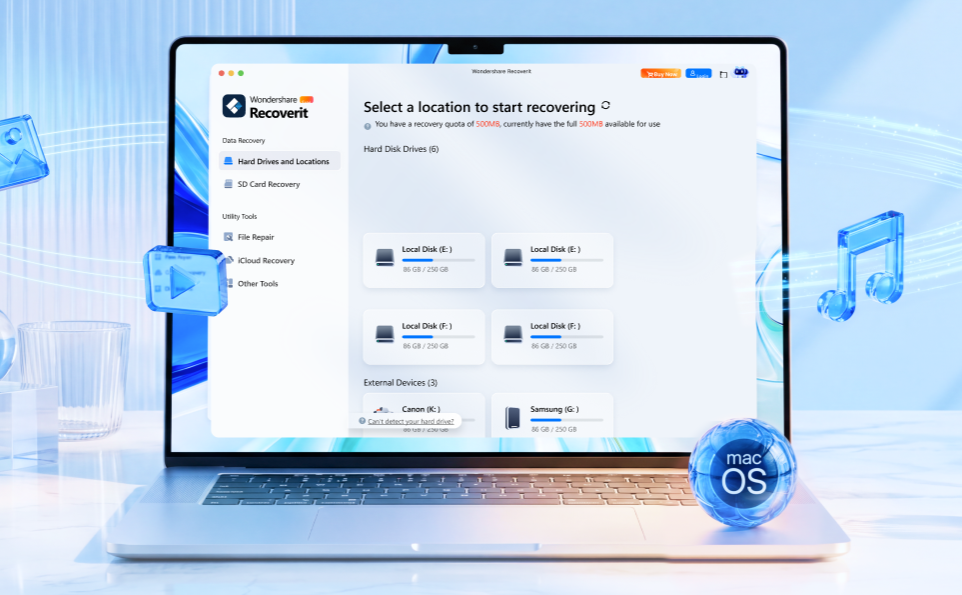
Losing important files on a Mac can be frustrating. You might accidentally delete family photos, empty the Trash before checking its contents, or format an SD card containing valuable videos. For professionals, students, and everyday Mac users, losing documents or creative projects can mean hours of wasted work.
Fortunately, deleted files are not always permanently lost. With the right precautions and a suitable recovery tool, you may be able to find and restore some of your missing data. This guide explains how free data recovery for Mac works and how Wondershare Recoverit can help you search for lost files.
Table of contents
What Should You Do When Files Disappear from Your Mac?
Before installing recovery software, take a few simple steps to protect your data.
- Stop using the affected storage device. New files can overwrite the space occupied by deleted data, making recovery more difficult. Avoid downloading applications or saving new files to the affected drive.
- Check the Trash. Open the Trash from your Mac’s Dock and look for the missing files. If you find them, right-click and select Put Back to restore them to their original locations.
- Check your backups. If you use Time Machine, look for an earlier version of the missing files. You should also check iCloud Drive and other cloud services where your files may have been synced or backed up.
- Identify where the files were stored. Were they on your Mac’s internal drive, an external hard drive, a USB flash drive, or an SD card? Knowing the original location will help you select the correct device when scanning for recoverable data.
If these methods do not work, data recovery software may offer another option.
What Is Wondershare Recoverit for Mac?
Wondershare Recoverit is a data recovery application designed to help users locate deleted or missing files across supported storage devices. It is useful in common situations such as accidental deletion, formatted memory cards, missing files on external drives, and certain data loss incidents involving Mac storage.
The software supports a wide range of file types, including photos recovery, videos , audio files, documents, and archives. Depending on the device and recovery scenario, it can scan internal drives, external hard drives, USB flash drives, SD cards, and other supported storage media.
Recoverit also includes file search and filtering features to help narrow down scan results. Its preview function lets users inspect supported files before attempting recovery, making it easier to identify the right photos or documents.
For photographers, video creators, and students, these features can be especially useful when file names are missing or many similar files appear in the scan results.
How to Use Recoverit for Free Data Recovery on Mac
Follow these steps to search for lost files using Recoverit for Mac. The interface and available features may vary by software version.
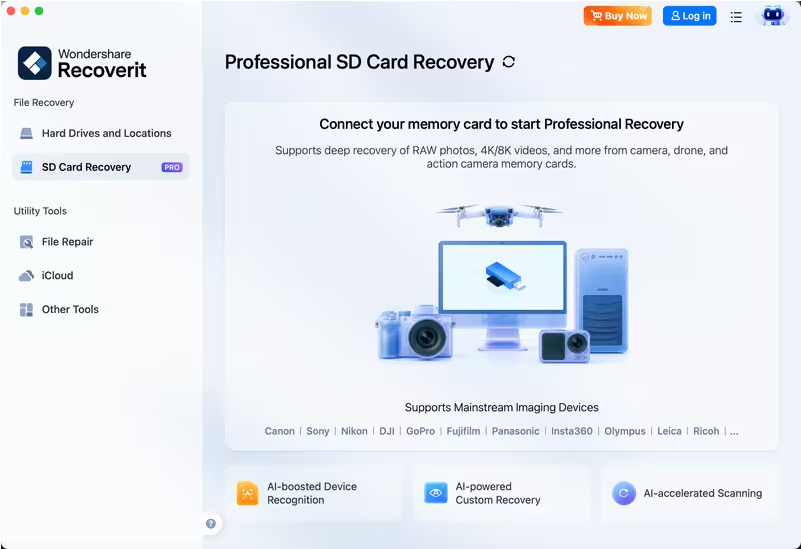
Step 1: Download and Install Recoverit
Follow the installation instructions and open the application. Whenever possible, install recovery software on a different drive from the one containing the lost files to reduce the risk of overwriting recoverable data.
If your missing files were stored on an external device, connect it to your Mac before starting the recovery process.
Step 2: Select the Location to Scan
On the main interface, review the available storage locations and select the drive or device where the files disappeared.
For example:
- Choose your Mac’s internal storage if you deleted documents from your desktop.
- Select an external hard drive if a project folder is missing.
- Choose the connected SD card if photos disappeared from your camera’s memory card.
- Check the appropriate recovery option if files were lost from another supported storage location.
Selecting the correct source helps the software focus its search on the relevant device.
Step 3: Scan for Lost Files
Start the scan and let Recoverit search the selected location for potentially recoverable data. The scanning time depends on factors such as drive capacity, device condition, and the amount of data being examined.
As files appear, use available filters or search options to narrow the results. If you are looking for vacation pictures, focus on image files. If you need a missing spreadsheet, search for the relevant document type or filename when possible.
For difficult cases, check whether a deeper scanning option is available for your selected recovery scenario.
Step 4: Preview and Select Files
After scanning, review the files that the software identifies. Use the preview feature, where supported, to check whether the content matches what you need.
This step can be particularly helpful when several files have similar names or when you are searching for a specific photo among hundreds of images.
Select the files you want to restore. Remember that a file appearing in the scan results does not guarantee that its contents are complete or usable.
Step 5: Recover and Save Your Files
Click the recovery option if it is available under your current license. Choose a different drive or storage device as the destination for the recovered files.
For example, if you are recovering data from your Mac’s internal drive, save the results to an external drive rather than the original location.
Once the process finishes, open the recovered files and verify that your documents, photos, and videos work as expected.
Can You Recover Files for Free with Recoverit?
Recoverit offers a free version for Mac users to scan for lost files and preview supported recovery results. Its official product page currently advertises free recovery of up to 500MB, subject to the applicable version and plan terms.
This can be useful if you only need to restore a small number of documents or photos. If you need to recover a larger collection of files, review the current plan details before proceeding, as additional recovery may require a paid upgrade.
No recovery application can guarantee that every deleted file will be restored. Success depends on factors such as whether the data has been overwritten, the condition of the storage device, and the circumstances of the loss.
If your drive has physical damage or is making unusual noises, stop using it and consider professional recovery services.
Tips to Prevent Future Data Loss on Mac
Recovering lost files is helpful, but prevention is even better. Keep regular Time Machine backups, maintain an additional copy of important documents on an external drive, and use cloud storage when appropriate.
Before formatting a memory card or external drive, double-check that you have copied any important files. When deleting large folders, review their contents carefully before emptying the Trash.
These habits can reduce the impact of accidental deletion and unexpected storage problems.
Final Thoughts
Losing photos, documents, or creative projects does not always mean they are gone forever. Checking the Trash and backups should be your first step. If those options fail, a recovery tool may help you locate files that remain recoverable.
Wondershare Recoverit for Mac provides a straightforward workflow for selecting a storage location, scanning for missing data, previewing results, and recovering eligible files. Its free option gives users a way to begin investigating data loss before deciding whether a paid plan is necessary.
Ready to look for your missing files? Visit the official Recoverit for Mac page to explore the available features and start your recovery search.
Always check the current free-plan limits and save recovered files to a separate storage location whenever possible.
