
Alight Motion Motion Graphics and Video Editing on a Windows Desktop
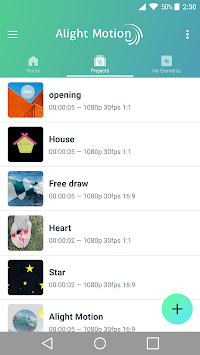
Alight Motion sits in an odd spot among mobile editors. Most phone apps in the Video Players & Editors category give you a timeline, some filters, and a export button. This one gives you keyframes on every parameter, vector shapes you can edit directly, and layer groups that behave the way they do in desktop compositing software.
That ambition is exactly why people start wondering how it runs on a larger screen.
Table of contents
The Layer Stack and Timeline at Full Screen Size
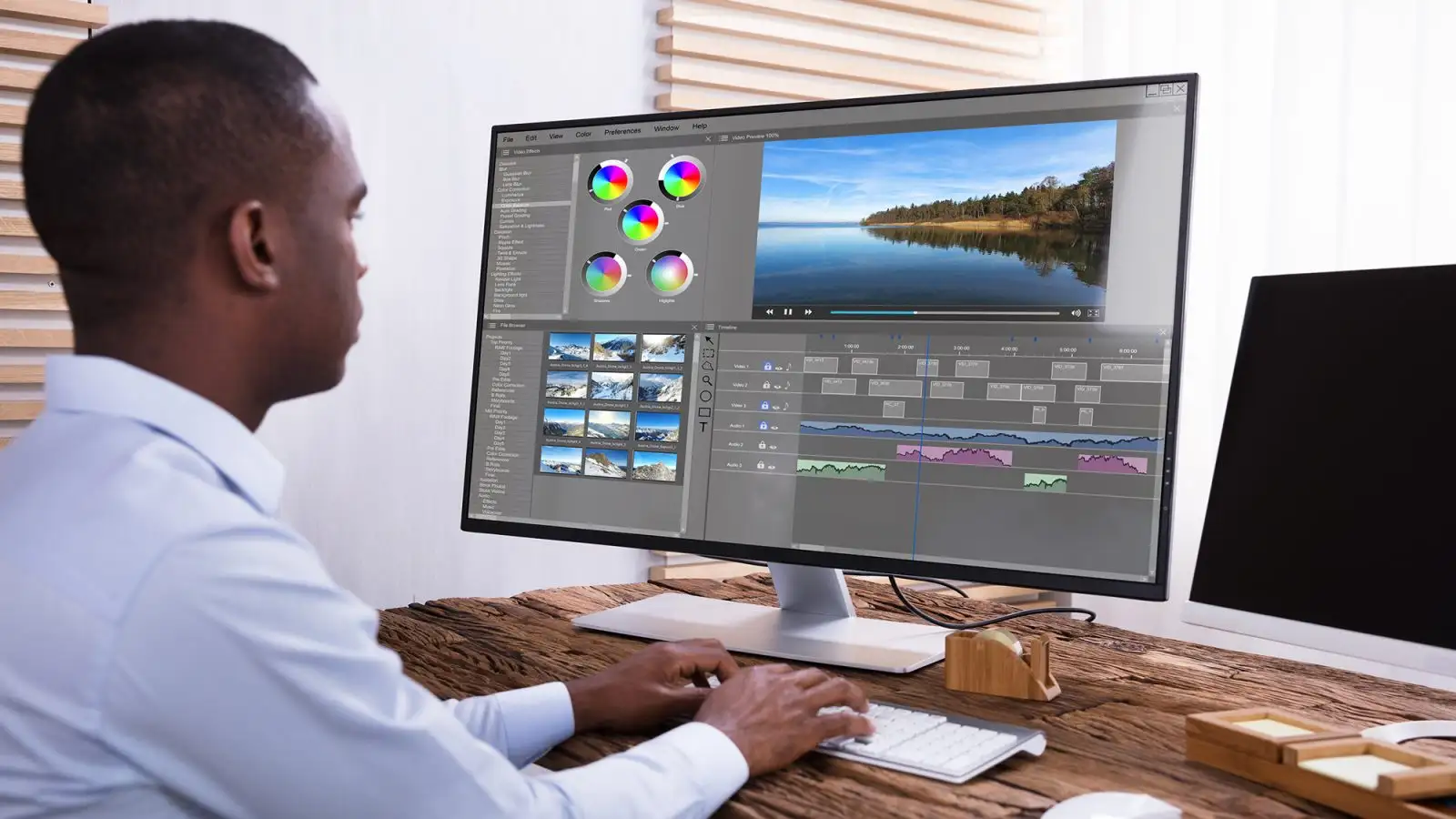
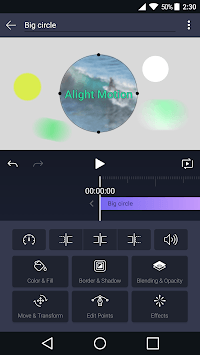
Open a project and the interface splits into a preview area up top and a timeline below. Layers stack vertically, each one a horizontal bar you drag, trim, and split. Graphics, video, and audio all live in the same stack, so a title card, a background clip, and a music bed are just three rows you shuffle around.
On a phone this works, but you are constantly pinching to zoom the timeline and scrolling to find the layer you want. Stretch the same interface across a monitor and the whole thing breathes. Eight or nine layers fit on screen without scrolling, and the preview stays large enough that you can actually see what a shadow or border effect is doing at the pixel level.
The layer grouping feature makes more sense at this size too. Collapsing a group of five animated elements into one row is useful on mobile; on a desktop it becomes an organizational habit rather than a survival tactic.
Keyframing Every Setting Without Fighting the Touch Target
Keyframe animation is available for every setting in Alight Motion, not just position and scale. Blur radius, color values, gradient angle, opacity, effect intensity: anything with a slider can be animated over time.
The catch on mobile is precision. Dropping a keyframe at frame 47 and then nudging it two frames left involves a lot of careful thumb work. With a mouse, you click the exact spot. Dragging a keyframe becomes a one-second action instead of a small negotiation with your own finger.
Running it on Windows means going through an Android emulator, and for a keyframe-heavy app like this one the practical payoff is mouse precision on the timeline rather than raw speed. If you want the details of that route, download Alight Motion for PC covers what the setup involves.
Easing is where this gets interesting. You can pick from timing curve presets or build your own, and editing a bezier handle on a curve is one of those tasks that always felt cramped on a 6-inch display. Pulling a handle with a cursor to fine-tune how a logo settles into place is a different experience entirely.
Vector Editing, Effects, and Velocity Motion Blur
Alight Motion supports both vector and bitmap graphics, and the vector editing happens inside the app. You can draw and reshape paths, then animate those paths with the same keyframe system. That is not common in mobile editors, and it is the feature that pulls in people making logo stings and animated typography.
Visual effects and color correction sit on top of that. Solid color and gradient fills, border and shadow effects, and per-layer color grading all combine into the compositing side of the app.
Velocity-based motion blur is the detail that separates finished-looking work from stiff work. Fast-moving elements pick up blur automatically based on how quickly they travel, which is the same principle expensive desktop tools use. Scrubbing the timeline slowly to check that blur is more comfortable on a big screen where you can see the trail.
Export lands as MP4 video or GIF animation, and you can save favorite elements for reuse across projects. Anyone building a consistent visual style across many short videos will lean on that library hard.
Running It Through an Android Emulator on Windows
The app is Android software, published under the name Alight Creative, Inc., so a Windows machine reaches it through an Android emulator. Two things matter more than usual here. First, give the emulator a generous chunk of RAM, because Alight Motion holds multiple video layers and effect passes in memory at once and a starved instance stutters during preview playback.
Second, check how the emulator maps your mouse to the app’s gesture controls. Alight Motion uses pinch-to-zoom on the canvas and two-finger drags on the timeline constantly. Emulators that translate scroll wheel and modifier-key drags into those gestures feel natural; the ones that do not will have you clicking through menus for zoom.
Rendering speed depends on your actual CPU, which usually beats a phone processor. Long exports with heavy effect stacks tend to finish faster than they would on the device.
Where the Desktop Setup Pays Off
If you are making quick social clips with a couple of text overlays, your phone is fine and the emulator is overhead you do not need. The people who get real value here are the ones building multi-layer motion graphics: animated logos, kinetic typography, effect-heavy edits with a dozen keyframed parameters per layer. For that work, a mouse on the timeline and a full-size preview turn Alight Motion from an impressive mobile app into something you can sit with for a couple of hours.
