
How to Migrate Emails from Thunderbird to Outlook? (A Step-by-Step Guide)

If you want to migrate Thunderbird emails to Outlook, you should know that the process to do this isn’t straightforward. This is because Mozilla Thunderbird stores a copy of email messages in an MBOX file – a container file format that is not natively supported by Outlook. It instead supports PST (Personal Storage Table) file format.
However, there are some workarounds that should help you migrate emails from Thunderbird to Outlook. Read further to learn these workarounds in detail.
Table of contents
What are the Methods to Migrate Thunderbird Emails to Outlook?
Below, we have explained some methods to export and migrate Thunderbird emails to Outlook.
Method 1: Save Thunderbird Emails in EML Files and Import them into Outlook
One way to migrate Thunderbird emails to Outlook is by saving them as individual .eml files. After that, you can simply move them into Outlook. Here’s a complete stepwise process:
Part 1: Save Emails to EML Files
First, you need to save the Thunderbird emails as EML files. To do this:
- Create a new folder anywhere on your PC to store the EML files.
- After that, launch Mozilla Thunderbird.
- Hold the Shift key and use the left mouse click to select the required email messages.
- Right-click on the selected items and click on Save As.
- Select the new folder that you have just created on your PC and click on Select Folder.
The selected email messages will be saved as individual .eml files in the selected folder.
Step 2: Drag and Drop the EML Files into Outlook
Now, move the saved EML files into Outlook. To do this:
- Launch Outlook on your Windows PC.
- Create a new folder (click on Folder in the menu bar and click New Folder).
- Now, open the folder on your PC where you have saved Thunderbird emails as EML files.
- Select them, and drag and drop them into the new folder created in MS Outlook.
Limitations of the Above Method
- Time-consuming and repetitive process
- Mailbox folder hierarchy is lost when saving emails from different mailbox folders
- This method is only suitable for a few emails
- It cannot be used to import Thunderbird contacts, calendars, and other items into Outlook
- There are high chances of missing emails, as you have to manually move them
Method 2: Use an Online MBOX to PST Converter
To overcome the limitations of the above manual method, you can use mbox to pst converter free online by Stellar. It is a free online service that lets you quickly convert a single Thunderbird MBOX file of size (≤100MB) to PST for free. This web-based utility is easy to use and converts the uploaded MBOX file to PST in 3 simple steps: Upload > Convert > Download.
If you have MBOX file larger than 100 MB but smaller than 5GB in size, you can upgrade to the ‘Premium’ edition of this online utility. After converting to PST format, you can import the resulting PST file into Outlook using its built-in Import/Export wizard.
Method 3: Migrate Thunderbird to Outlook using an MBOX to PST Converter Software
If you have to migrate a large number of emails of several Thunderbird profile folders or save the emails in other file formats, you can use a powerful MBOX to PST converter tool like Stellar Converter for MBOX. It lets you directly export data from a Thunderbird .mbox file to Outlook. It scans the selected MBOX file and lists all the mailbox items (emails, contacts, etc.) in a tree-view structure. You can also convert Thunderbird MBOX to PST, MSG, or EML file format.
Some highlights of this tool:
- Converts MBOX to PST with 100% accuracy
- Allows you to convert selected items, like emails, contacts, calendars, tasks, etc.
- Directly export MBOX file to an existing Outlook profile/Append to an existing PST
- Save mailbox items as EML or MSG files.
- Apply advanced filters, like date range, to save specific data
- Option to exclude Deleted or Spam/Junk items from the converted file
- Supports 17+ MBOX email clients, like Mozilla Thunderbird, Eudora, GNU, Google Takeout (Gmail), Apple Mail, etc.
Now, let’s look at the steps to use this software to migrate Thunderbird to Outlook:
- Download and install Stellar Converter for MBOX on your Windows PC.
- Launch it.
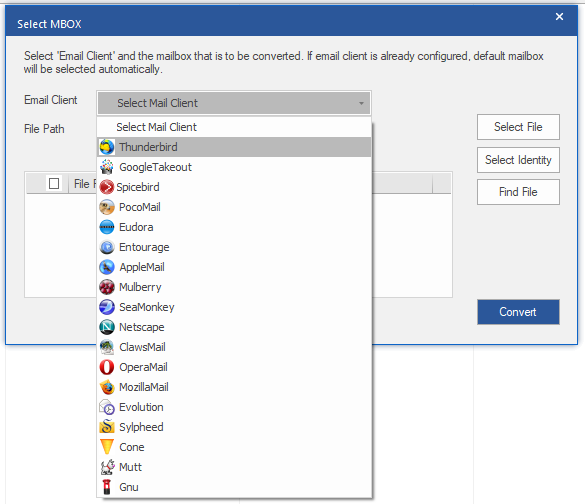
- You will see the Select MBOX window.
- Use the Email Client dropdown list and select Thunderbird.
-
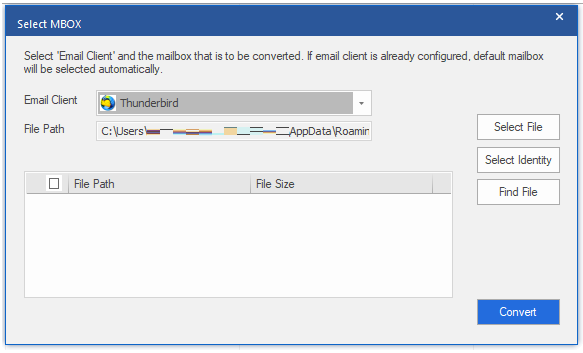
The tool will automatically select the default path.
Note: Click on the Select Identity or Select File button to select a Thunderbird MBOX file stored at another location on your system.
-
Next, click on Convert.
-
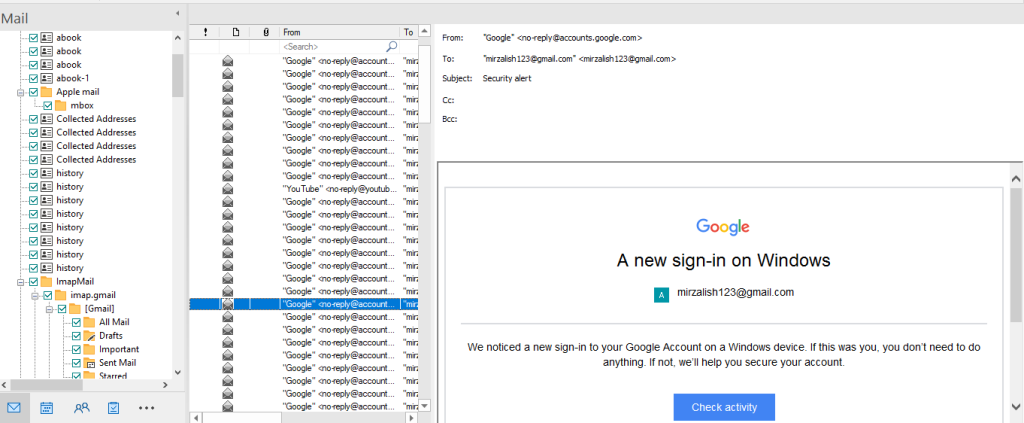
After the scan is complete, you will see a list of all the items from the scanned Thunderbird MBOX file. Select any item to preview it.
-
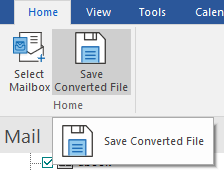
After previewing the mailbox items, select the required items. By default, all items are selected. Click Save Converted File.
-
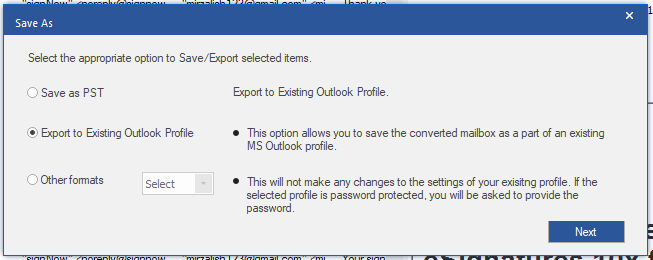
The Save As Window will open. Select the Export to Existing Outlook Profile option and click Next.
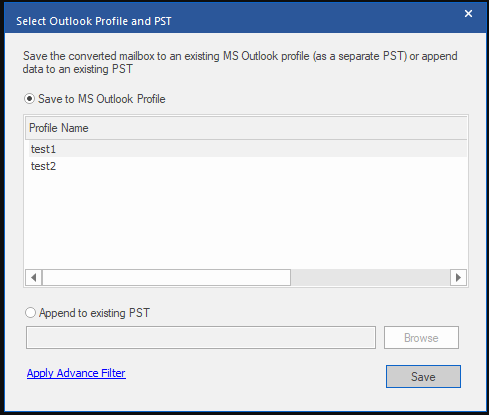
- Select the Save to MS Outlook Profile option.
- A list of user profiles will populate under Profile Name. Select a profile in which you want to export the selected Thunderbird MBOX file items.
- Click on Save.
-
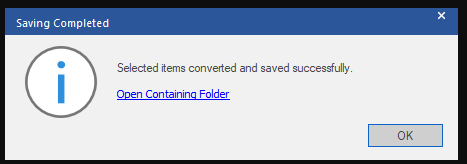
You will see the Saving Completed message after the software has exported your Thunderbird mailbox data to the selected Outlook profile. Click OK to complete the process.
Conclusion
Above, we have discussed a manual method to export Thunderbird to Outlook. It is ideal for migrating a handful of Thunderbird emails to Outlook. Also, it is time-consuming and tedious as you’ll have to repeat the steps to save emails from different mailbox folders.
A simple way to migrate Thunderbird emails to Outlook is to take the help of Stellar Converter for MBOX, a professional MBOX to PST converter software that directly imports Thunderbird MBOX file emails along with attachments into MS Outlook profile without altering the mailbox structure or any formatting. Furthermore, you can also use it to convert Thunderbird emails to Outlook PST format or EML and MSG, in a few clicks.
