
How to Recover Data From an External Hard Drive
The external hard drive is among the commonly used data storage devices to keep precious data such as photographs, video files, office documents, projects, back-ups and personal data. The device is portable, has massive storage space, and can connect with any computer easily.
However, sometimes people find themselves in a very uncomfortable situation when the external hard drive fails to work. The user connects the hard drive to their computer, and no action is performed. The external hard drive is shown in the File Explorer but fails to open; in other cases, the user is asked to format the hard drive prior to using it.
The point is that an undetected hard drive does not mean losing valuable information. It happens quite often that the files on the drive are still available and can be retrieved with appropriate measures taken.
This guide will give answers to the questions of why does an external hard drive stop working, how to act at first, methods of file recovery, mistakes that need to be avoided, and in which situations the data recovery software will help.
Common Causes of External Hard Drive Access Failures
Knowing the cause of the problem makes it easier for you to select the appropriate recovery technique. These are some of the most frequent causes.
Table of contents
1. Corrupted File System
The file system is responsible for organizing data on your computer. It may become corrupt due to an unexpected power cut, accidental unplugging, or system crash.
Common symptoms include:
- Drive appears but won’t open
- “You need to format the disk before you can use it”
- File directory becomes inaccessible
- Files suddenly disappear
2. Accidental File System Damage
File transfers can be disrupted, resulting in problems with the structure of your hard drive. Although the files are there physically, Windows will not be able to find them.
3. Bad Sectors
A hard drive has its bad sectors that result in the inability of Windows to read some parts of the disk.
Signs include:
- Very slow drive performance
- Clicking noises
- Files taking too long to open
- Drive freezing during access
4. Virus or Malware Infection
Malicious software may:
- Hide files
- Corrupt partitions
- Damage the boot sector
- Block access to folders
After malware removal, the drive may still remain inaccessible.
5. USB Connection Problems
Sometimes the problem is much simpler than expected.
Possible reasons include:
- Faulty USB cable
- Damaged USB port
- Loose connection
- Insufficient power supply
Always rule out hardware connection issues before assuming the drive has failed.
6. Partition Corruption
In case there is any problem with the partition table, then Windows will recognize the hard disk, but will not show any stored files.
You may see the drive as:
- RAW
- Unallocated
- Unknown
- Not Initialized
7. Physical Damage
Physical damage is one of the most serious causes.
It may happen because of:
- Dropping the drive
- Water exposure
- Electrical surge
- Internal mechanical failure
If the drive produces any strange sounds such as clicking and grinding, do not try accessing it again and again.
What You Should Do Before Recovering Data
Before trying any recovery method, follow these precautions to avoid making the situation worse.
Stop Using the Drive
Do not copy new files onto the drive.
New data may overwrite recoverable files.
Do Not Format the Drive Immediately
Windows often displays a formatting prompt.
Although formatting may make the drive usable again, it can complicate the recovery process.
Always recover important files first.
Avoid Running Multiple Repair Tools
Many users try different repair utilities one after another.
Repeated repair attempts may cause additional file system damage.
Choose one method carefully.
Try:
- Another USB cable
- Another USB port
- Another computer
Sometimes the drive itself is healthy, and only the connection is faulty.
Methods to Recover Data From an External Hard Drive That Won’t Open
Let’s explore several recovery methods depending on your situation.
Method 1: Check Disk Management
Windows Disk Management can tell you whether the system detects the drive.
Steps:
- Press Windows + X.
- Select Disk Management.
- Locate your external hard drive.
Look for its status.
Possible conditions include:
- Healthy
- RAW
- Unallocated
- Offline
This information helps determine the next recovery step.
Method 2: Assign a Drive Letter
Sometimes Windows detects the drive but doesn’t assign a letter.
To fix this:
- Open Disk Management.
- Right-click the drive.
- Choose Change Drive Letter and Paths.
- Assign a new letter.
Check whether the drive becomes accessible.
Method 3: Update Device Drivers
An outdated USB or storage driver may prevent proper communication.
Steps:
- Open Device Manager.
- Expand Disk Drives.
- Right-click the external drive.
- Select Update Driver.
Restart the computer after updating.
Method 4: Use CHKDSK Carefully
If the drive is still recognized, Windows Check Disk may repair minor logical errors.
Open Command Prompt as Administrator.
Run:
chkdsk X: /f
Replace X with your drive letter.
Remember that CHKDSK repairs problems with the file system. In the case of badly corrupted hard drives, running CHKDSK on them before recovering important files can cause the loss of data. If you have valuable files, always try to recover them first.
Method 5: Recover Files Using Professional Data Recovery Software
In cases where the computer cannot recognize your hard drive due to corruption, missing partitions, formatting or problems with the RAW file system, then specialized software may be needed to get back your data.
The data recovery software is designed to recover files from:
- External hard drives
- USB flash drives
- Internal HDDs
- SSDs
- Memory cards
It supports recovery of documents, images, videos, emails, archives, and many other file formats.
One of its biggest advantages is that it performs scanning without changing the original content on the storage device.
How to Recover Files Using Data Recovery Software
Data recovery with the help of professional data recovery software is an easy task. For this tutorial, we will be using Stellar Data Recovery Professional for Windows as a means of retrieving data from an external hard drive which doesn’t work.
Step 1
Install the software on a healthy drive rather than the affected external hard drive.
Step 2
Connect the problematic external hard drive.
Step 3
Launch the application.
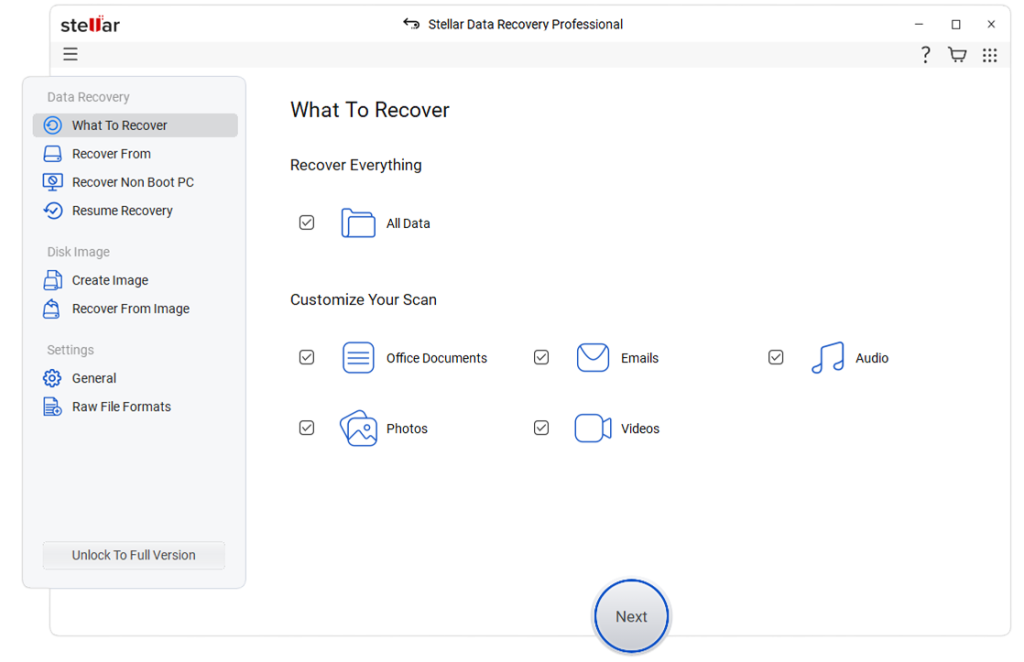
Step 4
Choose the file types you want to recover, or select all file types for a complete scan.
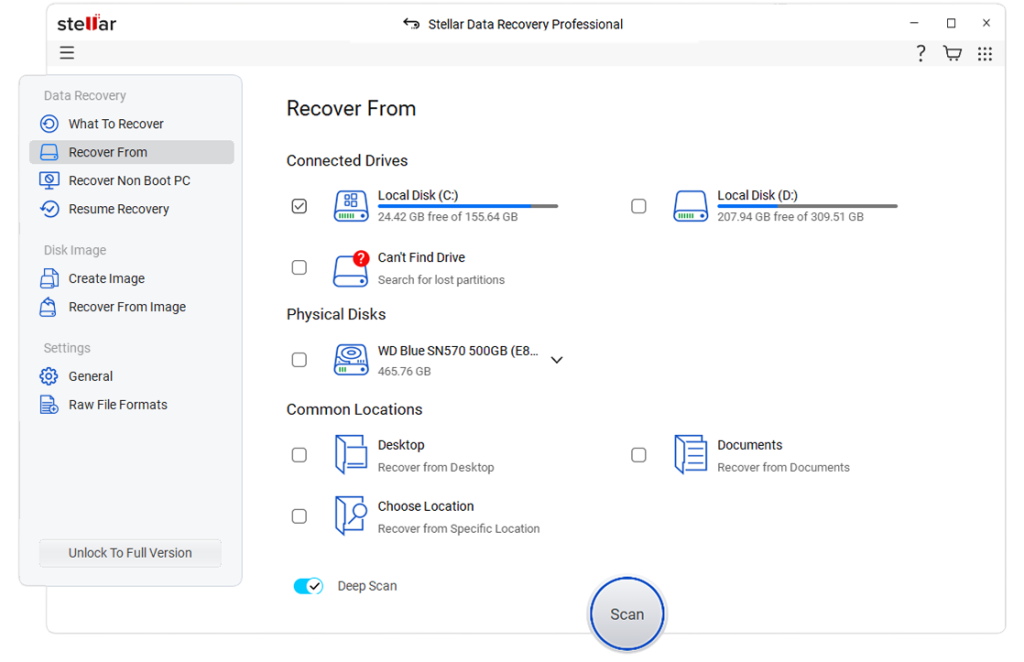
Step 5
Select the external hard drive from the available storage devices.
Step 6
Start the scan.
If necessary, perform a Deep Scan to search for files that are difficult to locate through a standard scan.
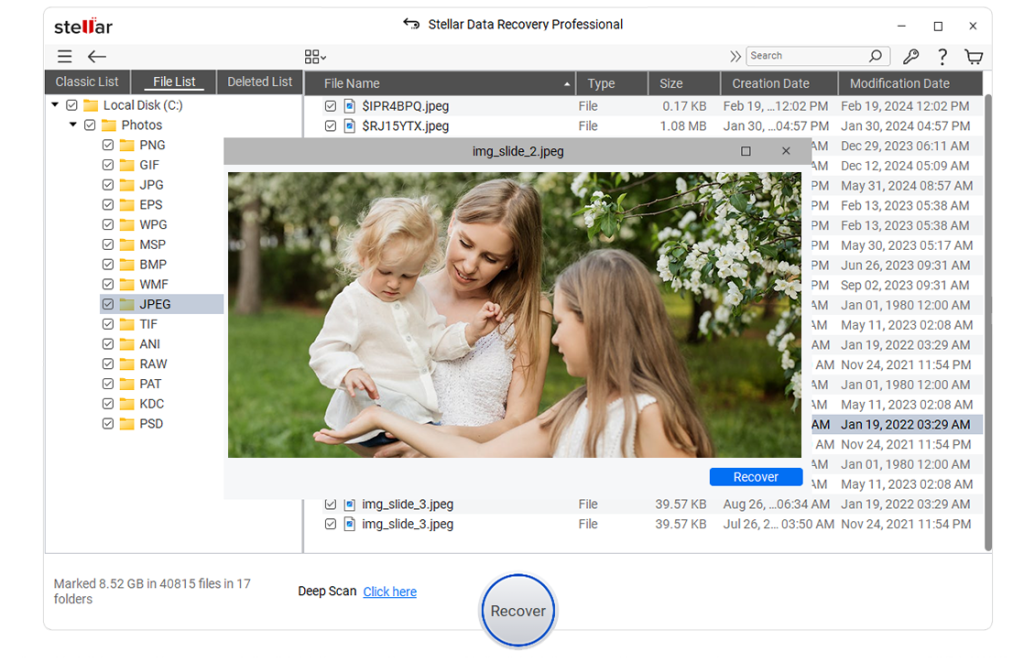
Step 7
Preview the recovered files.
Previewing helps confirm that the files are intact before recovery.
Step 8
Save the recovered files to another storage location.
Tips to Prevent External Hard Drive Data Loss
Although recovery is possible in many cases, prevention is always better.
Here are some practical habits:
Safely Remove the Drive
Always use the “Safely Remove Hardware” option before unplugging the drive.
Maintain Multiple Backups
Follow the 3-2-1 backup strategy:
- Keep three copies of important files.
- Store them on two different storage devices.
- Keep one backup off-site or in cloud storage.
Protect the Drive From Physical Damage
Use a protective case and avoid dropping the drive.
Keep it away from moisture and extreme temperatures.
Scan for Malware
Regular antivirus scans help prevent file corruption caused by malicious software.
Monitor Drive Health
Many disk monitoring tools can warn you about potential hardware failure before serious damage occurs.
Replacing an aging drive early is much safer than waiting for it to fail completely.
Final Thoughts
It can be quite frightening if an external hard drive stops working. The good news is that there are usually only logical issues causing this problem such as file system corruption, bad sectors, lack of drive letter or partition problems, and not actual loss of the information on your drive.
The best way to do this is to cease usage of the drive, not format it, determine whether Windows recognizes it, and use the proper recovery technique depending on the cause of the problem. In case the above process does not help in gaining access to your system, the use of professional data recovery software would be a good option before carrying out any repair.
One of the possible options in this case is using Stellar Data Recovery Professional for Windows, which is one of the useful ways to recover data from corrupted, inaccessible or RAW external hard drives. However, it should be kept in mind that no software can guarantee recovery in all cases, especially if there is some serious physical damage to the disk drive. Nevertheless, this software can greatly increase the possibility of data recovery in case of logical problems.
